 Jarvis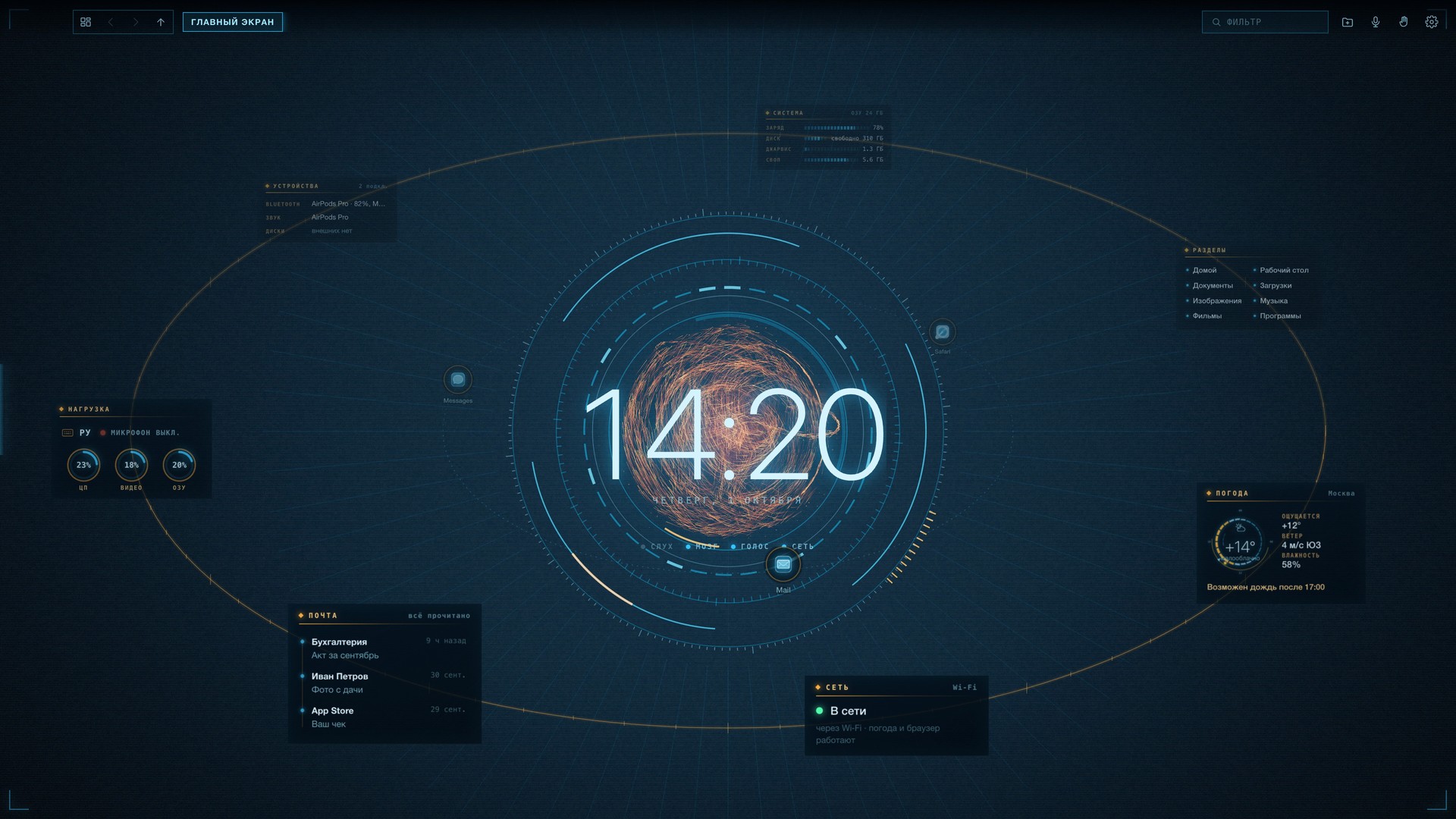

Contents
Jarvis lives on your Mac and does everything himself: finds and opens files, plays movies, reads mail and documents, and answers out loud. This guide explains how to install and set him up, how to connect an external AI, and how to talk to him.
Jarvis, open downloads — this is how spoken phrases are marked; you can change the words, Jarvis understands natural speech. ⌘D — keys. Yellow numbered circles on screenshots refer to the list under the picture.
Section 01
It is a shell for your Mac in the spirit of Jarvis from “Iron Man”: a golden sphere in the centre, with the clock, weather, mail and folders around it — all run by a live voice assistant. He hears, thinks and speaks right on your computer, with no internet.
Speech recognition runs on the computer itself. Jarvis answers only to his name and never mistakes a movie soundtrack for a command.
The built-in Gemma model is fine-tuned on real Jarvis commands and thinks in about a second and a half. If you prefer — ChatGPT, Claude, Gemini, DeepSeek or Alice.
The neural voice Karen: a brisk business-like pace, no robotic intonation. Answers are short and to the point, one to three sentences.
Folders, movies, mail, documents, the browser. Anything that changes or deletes files — only after your “yes”.
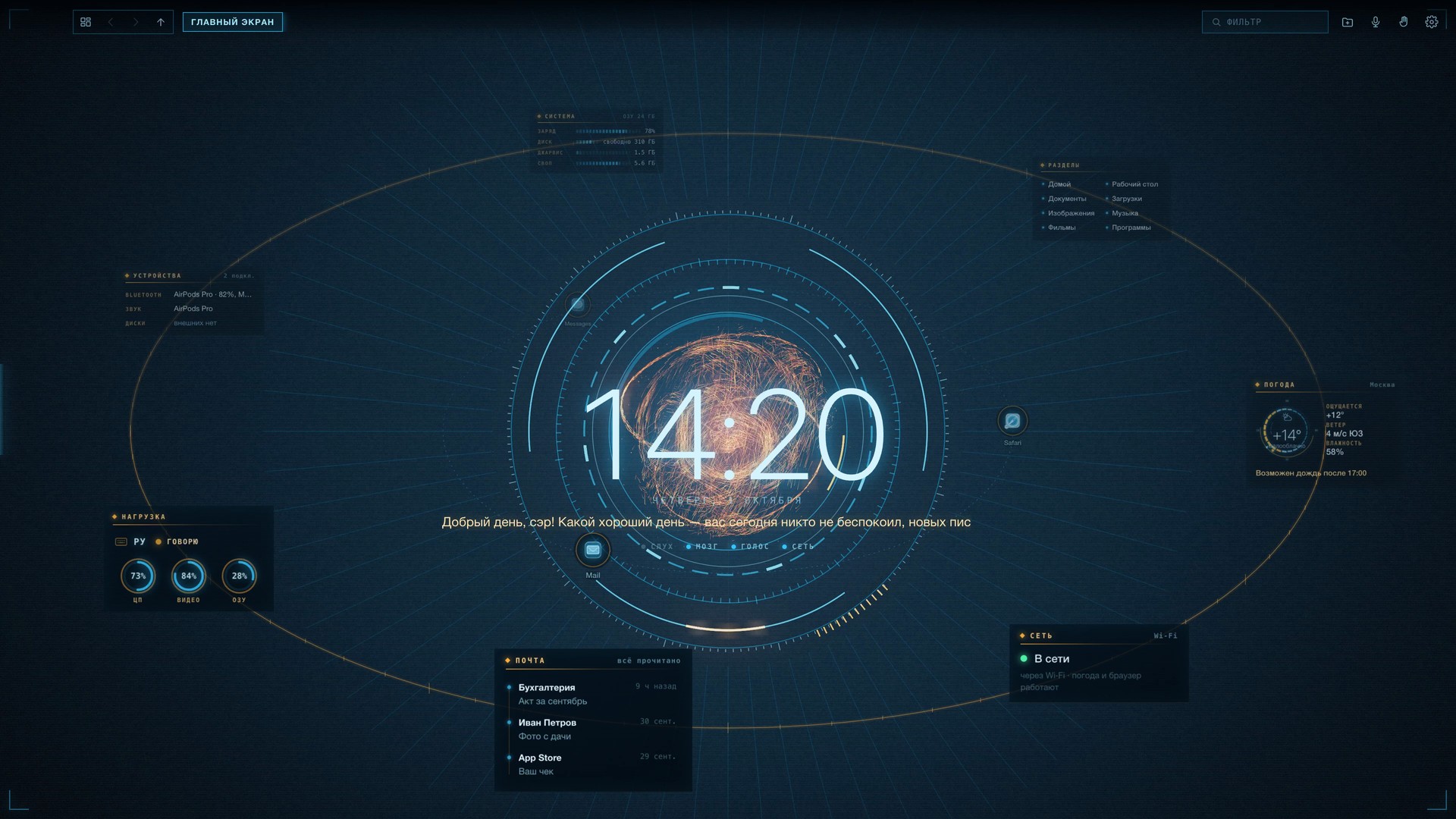
The main screen. Jarvis has just said hello: “Good afternoon, sir! What a nice day — nobody bothered you today, no new mail.” The widgets orbit the sphere.
Section 02
| Requirement | Details |
|---|---|
| A Mac with an Apple processor | M1 or newer. Jarvis does not run on Intel Macs. |
| Memory | 24 GB recommended. The brain, hearing, voice and the 3D scene live in memory at the same time: the main build takes about 19 GB when idle, the lighter “Jarvis 12B” — about 16 GB. With an external brain (ChatGPT, Claude…) you need 13 GB less. |
| Microphone and speakers | Built-in or a Bluetooth headset. If sound goes to headphones, Jarvis listens through their microphone. |
| Camera | Needed only for gesture control. An iPhone camera (Continuity Camera) works too. |
| Internet | Optional. Needed for the weather, the browser and external brains, if you choose them. |
The Gemma 26B brain: understands long requests better, does the sums itself, never mixes up the parties in a contract. For a Mac where Jarvis is the main program.
The Gemma 12B brain, 4 GB less memory. For working alongside browsers and heavy programs. Voice, hearing and graphics are the same.
Both builds install side by side and share the same settings, so they cannot run at the same time. Together with Jarvis, a small program “Jarvis — Wake” is placed in your Applications folder — it listens for claps while Jarvis is closed (section 11).
Section 03
On the first launch Jarvis asks four questions. All of it can be changed later in the settings — the “Address” row, the “Change…” button.
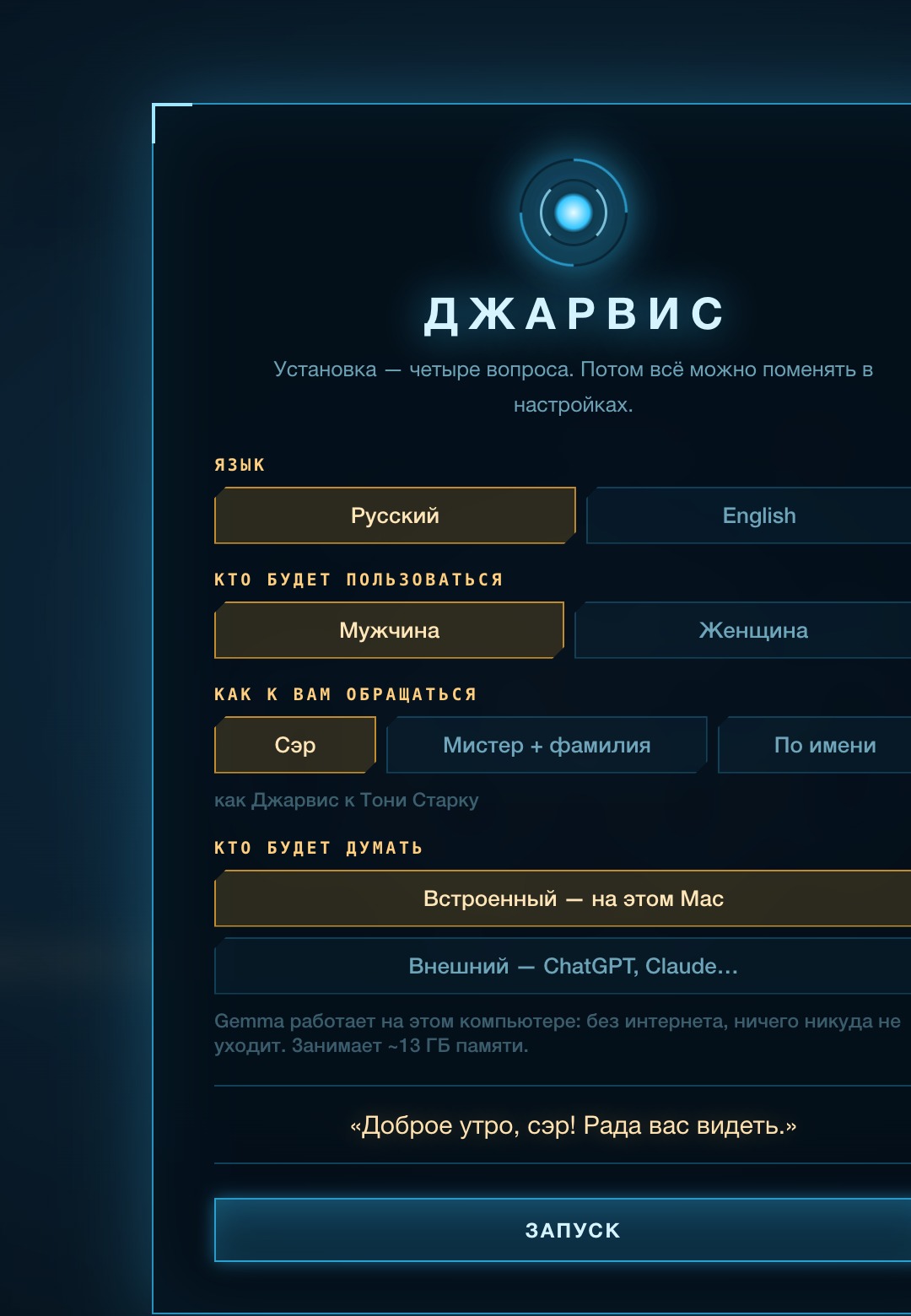
The first-launch wizard. The chosen options are highlighted in gold. At the bottom — an example of how Jarvis will greet you.
Русский or English. Everything switches at once: speech recognition, the voice, commands and help. You can also switch by voice: switch to Russian, then переключись на английский.
A man or a woman. This decides which forms of address the next question offers.
For a man: sir (default), Mr + surname or by first name. For a woman: ma’am (default), miss — for a young woman, Mrs + surname — for a married one, or by first name. Just like Jarvis with Tony Stark.
Built-in — on this Mac. The Gemma model runs on the computer: no internet, nothing leaves the machine. Takes about 13 GB of memory.
External — ChatGPT, Claude… After launch the settings open by themselves at the “Brain” section, where you enter a key. How to get one and where to put it — section 05.
Every launch starts with the boot screen: the rings spin up, in the lower left corner the node check runs line by line, and the wide bar under the sphere fills as loading goes on. At the top — a greeting for the time of day. Usually this takes 5–10 seconds: that is how long it takes to bring up the brain, hearing and voice.
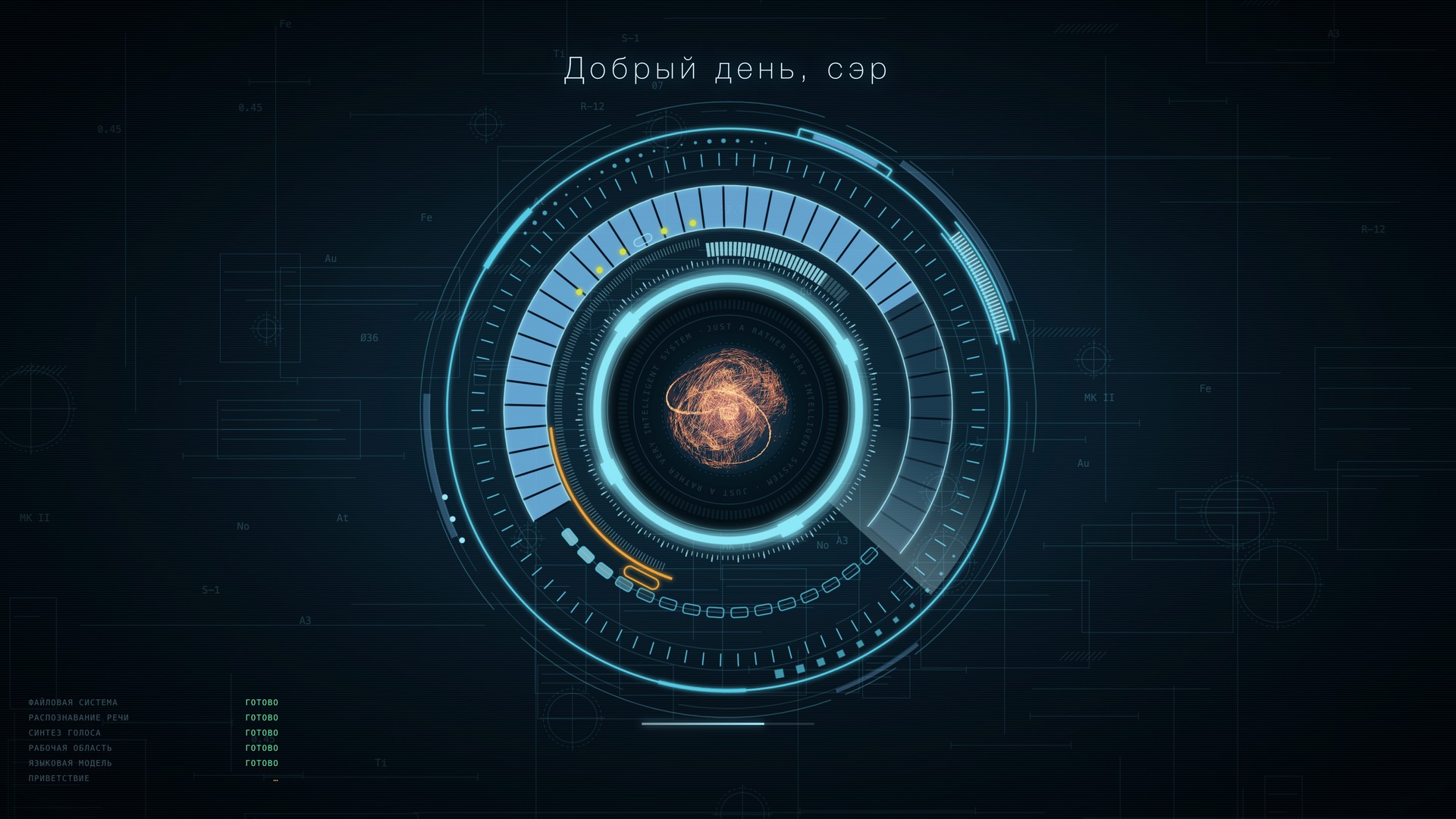
The J.A.R.V.I.S. boot screen. Lower left — the boot log: file system, speech recognition, voice synthesis, workspace, language model, greeting.
Jarvis opens full screen. It is an ordinary macOS program: you can minimise it, switch to another and come back. The window position is remembered.
Quit the program like any other (⌘Q) or by voice: Good night, Jarvis. He will say goodbye and exit. All farewell and wake phrases are in section 11.
Section 04
Opened with the gear button in the upper right corner or with ⌘,. Changes apply immediately; the “Done” button simply closes the panel. Settings are shared by both builds.
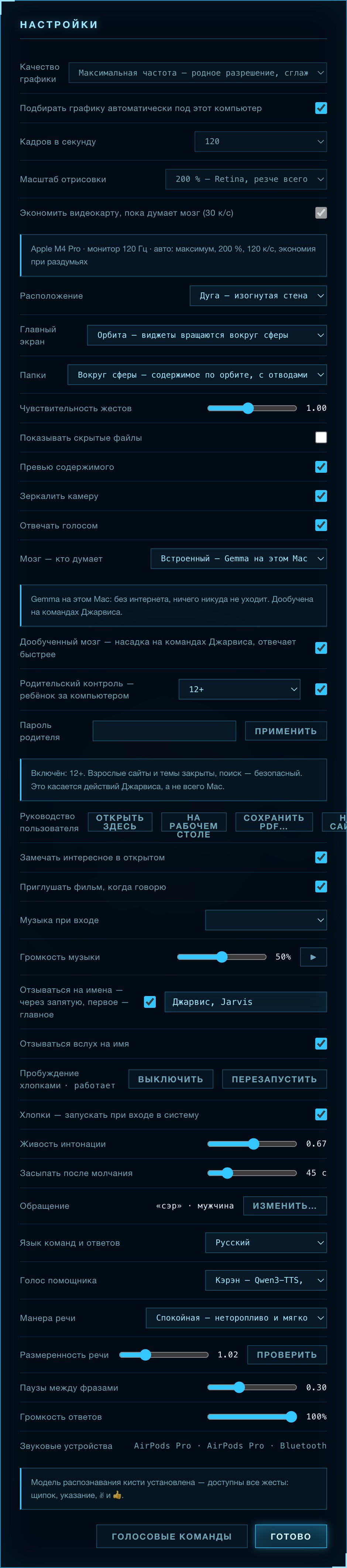
Graphics quality, Pick graphics automatically, Frames per second, Render scale and Save the GPU while the brain thinks — section 04.1. Layout for the “Grid” view: arc, grid, spiral. Main screen: orbit, callouts, classic. Folders: around the sphere or as a grid.
Gesture sensitivity · show hidden files · content previews · mirror the camera.
The most important row: here you choose who answers your requests — the built-in Gemma or an external AI (ChatGPT, Claude, Gemini, DeepSeek, Alice, Claude Code). Next to it — the model, the key field and the “Check” button. Details in section 05. Below: Fine-tuned brain (the adapter for the built-in model), Notice interesting things in what is open, Turn the movie down when I speak.
Parental control — the child’s age and the parent’s password (section 04.2). User guide — four buttons: open this book right inside Jarvis, open the copy on the Desktop, save the PDF anywhere, or open it on the website.
Jarvis’s theme, your own file, or off. For your own file — from which second, how long to play, the “Clip” button to listen, music volume.
Answer to names — a comma-separated list, the first one is the main. Answer out loud to the name — “Yes, sir?”. Wake by claps: enable, restart, start at login. Fall asleep after silence — how many seconds after answering Jarvis waits for a command without the name (section 11).
Address and the “Change…” button (the same wizard). Language of commands and answers. Assistant voice: Karen (main), Karen-2, Serena, Vivian — for Russian and English. Manner of speech: calm, neutral, fast. Liveliness of intonation, pace, pauses between phrases, answer volume and the “Check” button — a test phrase. Audio devices — where the sound goes and where we listen from.
“Voice commands” — the built-in help. “Download the hand model” — if the hand model is missing.
Jarvis picks the graphics for your computer himself: he looks at the GPU, memory and the monitor’s refresh rate. On a Mac with an Apple processor that is the maximum — 200 % and as many frames as the monitor can show. If the program feels heavy, the graphics can be set by hand.
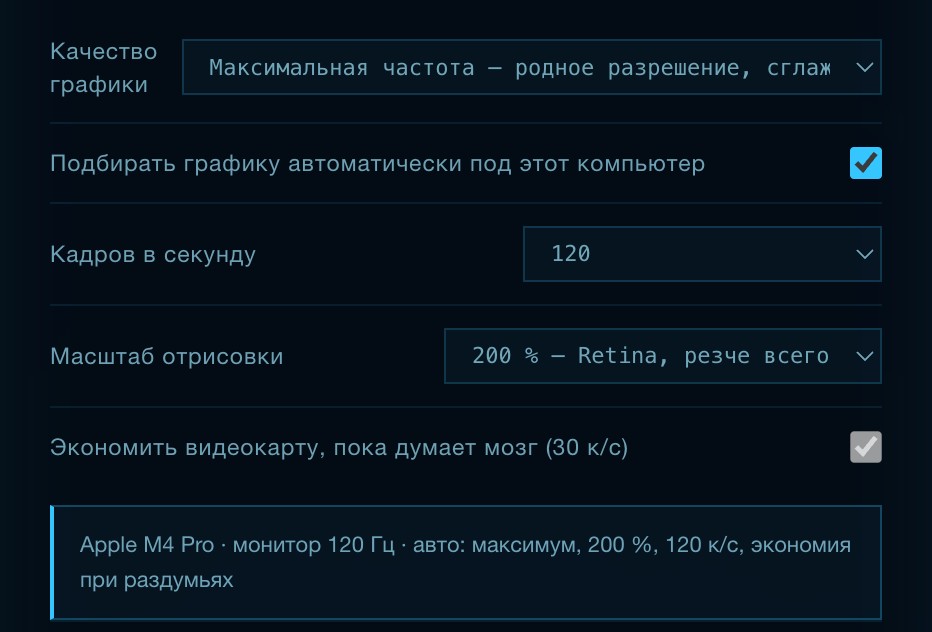
Settings → graphics. The auto-pick box is ticked, so the fields below show what was chosen and are locked. In the frame — what Jarvis found: the GPU, the monitor’s refresh rate and the result.
| Graphics quality | Maximum frame rate · Cinematic (plus depth of field) · Balanced · Performance. |
| Pick automatically | On by default. While the box is ticked, Jarvis decides himself; untick it to choose by hand. |
| Frames per second | Auto — same as the monitor · 30 · 60 · 120. More frames — smoother, but a higher load on the GPU. |
| Render scale | This is the graphics resolution. 100 % — the lightest · 150 % · 200 % — Retina, the sharpest. The window is always full screen anyway. |
| Save the GPU while the brain thinks | While the brain prepares an answer, the scene runs at 30 frames: the answer comes sooner. The screen does not freeze. |
| Computer | Quality | Scale | Frames |
|---|---|---|---|
| Mac with an Apple processor (M1 and newer) | Maximum frame rate | 200 % | same as the monitor — 60 or 120 |
| Discrete graphics card | Balanced | by the screen | 60 |
| Integrated Intel graphics and others | Performance | 100 % | 60 |
If a child uses the computer, turn on parental control. Jarvis will stop opening websites and carrying out requests that are not right for the age, and web search becomes safe. Turning the control off or changing the age takes the parent’s password.
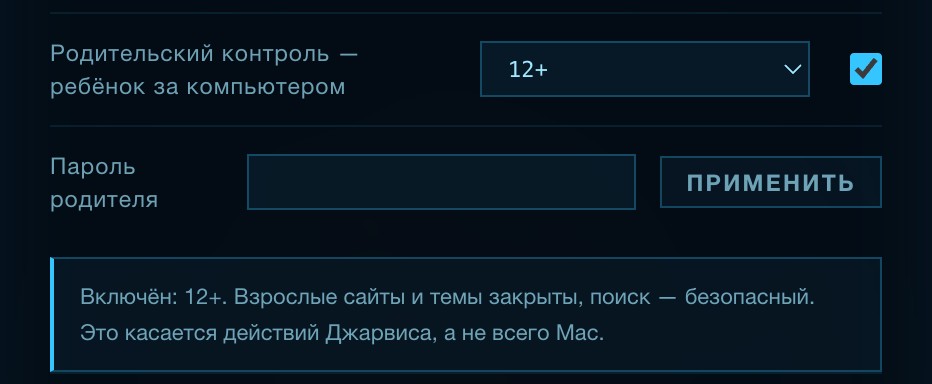
Settings → “Parental control”. The age, the on/off box, the parent’s password and the “Apply” button. Below — what is on right now.
| Topic | 6+ | 12+ | 16+ |
|---|---|---|---|
| Adult content, gambling and betting | closed | closed | closed |
| Drugs, weapons, gore, darknet | closed | closed | closed |
| Dating sites | closed | closed | open |
| Safe search (Yandex, Google, Bing) and YouTube restricted mode | always on while the control is on | ||
Choose another age or untick the box, enter the parent’s password and press “Apply”. Without the password the changes are not saved: “The parent password did not match”. The password is stored on the Mac only in encrypted form.
Section 05
The brain decides what to do with your request: open a folder, find a file, read a letter, answer. By default the built-in Gemma does the thinking. Instead of it you can connect ChatGPT, Claude, Gemini, DeepSeek, Alice or Claude Code. Whoever thinks — Jarvis does everything himself, and the confirmation rules do not change.
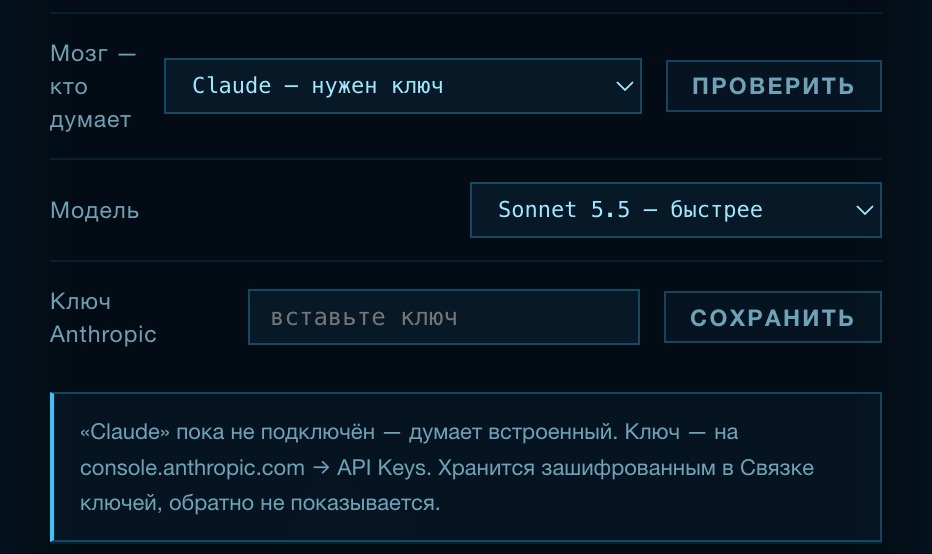
The “Brain” rows in the settings after choosing Claude: the list of brains and the “Check” button, the model, the key field with the “Save” button and a hint where to get the key.
Fine-tuned on thousands of real Jarvis commands (the “Fine-tuned brain” switch). Thinks for 1.5–5 seconds. In the main build it is Gemma 26B, in the light one — Gemma 12B.
A step takes 7–9 seconds, needs the internet and is billed by the model’s tariff. For everyday commands — folders, movies, volume — there is no difference: short phrases run without the brain at all.
| Brain | Where to get the key | Models in the list | Billing |
|---|---|---|---|
| Claude Anthropic | console.anthropic.com → sign in → API Keys → “Create Key” → copy. | Opus 5.5 — smarter · Sonnet 5.5 — faster · Haiku 4.5 — the fastest | By request volume; the card is linked on the Anthropic website. |
| Claude Code | No key needed: works under your Claude Code sign-in on this Mac. If the list says “sign in needed” — in Terminal run claude, enter /login, then “Check”. | Sonnet (default) · Opus · Haiku | Included in the Claude subscription. |
| ChatGPT OpenAI | platform.openai.com → API keys → “Create new secret key”. | GPT-5 · GPT-5 mini — faster | Separate from the ChatGPT Plus subscription: it does not cover keys. |
| Gemini | aistudio.google.com → Get API key. | Gemini 2.5 Pro · Gemini 2.5 Flash — faster | There is a free tier. |
| DeepSeek | platform.deepseek.com → API keys. | DeepSeek V3 · DeepSeek R1 — reasons longer | Cheaper than the rest. |
| Alice YandexGPT | Yandex Cloud console → service account → API key. Besides the key you need the folder ID (starts with b1g…) — the settings have a “Yandex Cloud folder” row for it. | YandexGPT Pro · YandexGPT Lite — faster | By Yandex Cloud tariffs. |
| What Jarvis shows | What it means and what to do |
|---|---|
| “… — needs a key” in the list | The key is not saved yet. Paste it into the field and press “Save”. |
| “… not connected yet — the built-in one thinks” | The choice is remembered, but there is no key. It starts working as soon as you paste the key. |
| “The key did not match” | The key was not copied whole or was revoked on the website. Create a new one and paste it again. |
| “… is not responding right now” | No internet, the limit or the balance ran out. Check the “Network” widget and your account on the model’s website. |
| “Claude Code: sign in needed” | Terminal → claude → /login → “Check” in the settings. |
| “The built-in model is not installed” | The model files were not found — reinstall Jarvis from the disk image. |
Section 06
In the centre — the golden sphere with the clock. Around it, widgets drift slowly along a tilted orbit, and along the inner one — the icons of programs running in the background. Everything is alive: the sphere pulses when Jarvis speaks, the far half of the orbit passes behind the sphere.
1
2
3
4
5
6
7
8
9
10
11
12
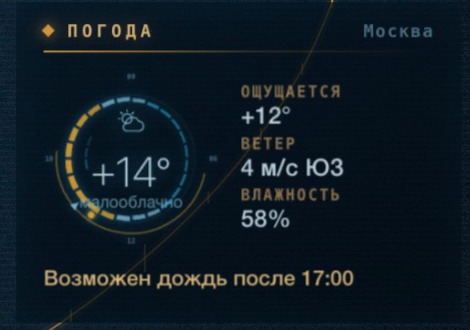
Weather. The city is detected automatically; ask for another by voice: weather in Kazan tomorrow. Updated from Open-Meteo; if the network fails, it retries after 20 seconds, 1 and 2 minutes.
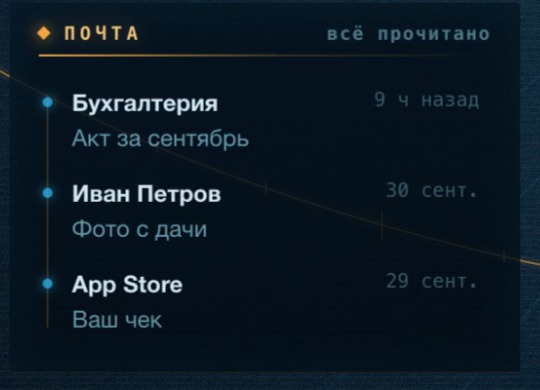
Mail. Letters come from the Mail app. A click on a letter opens it in a window inside Jarvis; if Mail is closed, iCloud Mail opens instead. Ask: what is in the letter from accounting?
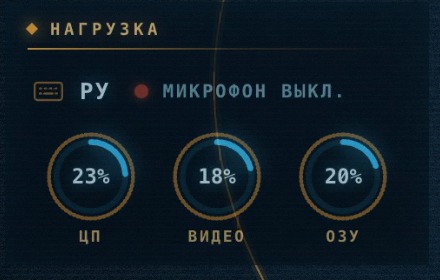
Load. RU/EN — the input language. Next to it — the microphone state: “speaking”, “listening”, “mic off”. Rings: CPU, video, RAM. Spikes to 100% at the moment of an answer are normal.
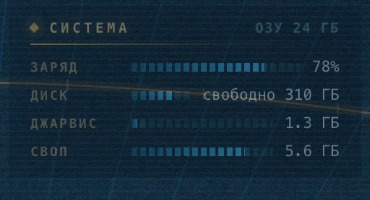
System. Battery charge, free disk space, memory taken by Jarvis, and the swap. If the swap grows — close heavy programs, switch to the 12B build or to an external brain.
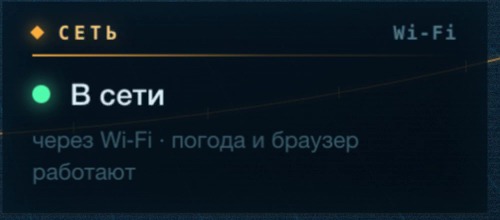
Network. A green dot — the internet is there. Files, hearing, voice and the built-in brain work without a network too.
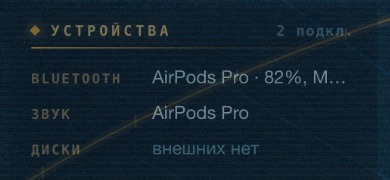
Devices. Connected Bluetooth devices with their charge, the current audio output, external drives. By voice: send the sound to the headphones.
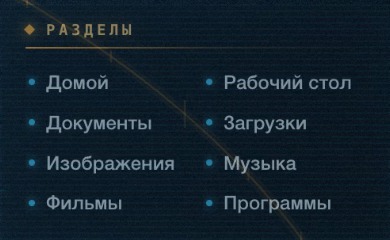
Places. Quick access to the main folders. The same by voice: open documents, and back: main screen or ⌘D.

Buttons at the top. Filter by name, new folder, microphone (lit while Jarvis listens), gestures in front of the camera, settings.
Chosen in the settings, the “Main screen” row. Orbit — the widgets revolve around the sphere (default). Callouts — panels at the sides with golden lines from the sphere. Classic — panels in the corners. The colours are the same everywhere: gold — the frame and the essentials, blue — all is well, red — errors.
Section 07
A folder opens full screen: its core in the centre, the contents drifting around it along the orbit, and a golden lead running from the ring to every item. To enter a folder: say open downloads, click a place, or double-click a folder. To go back: main screen, the “Home” button or ⌘D.
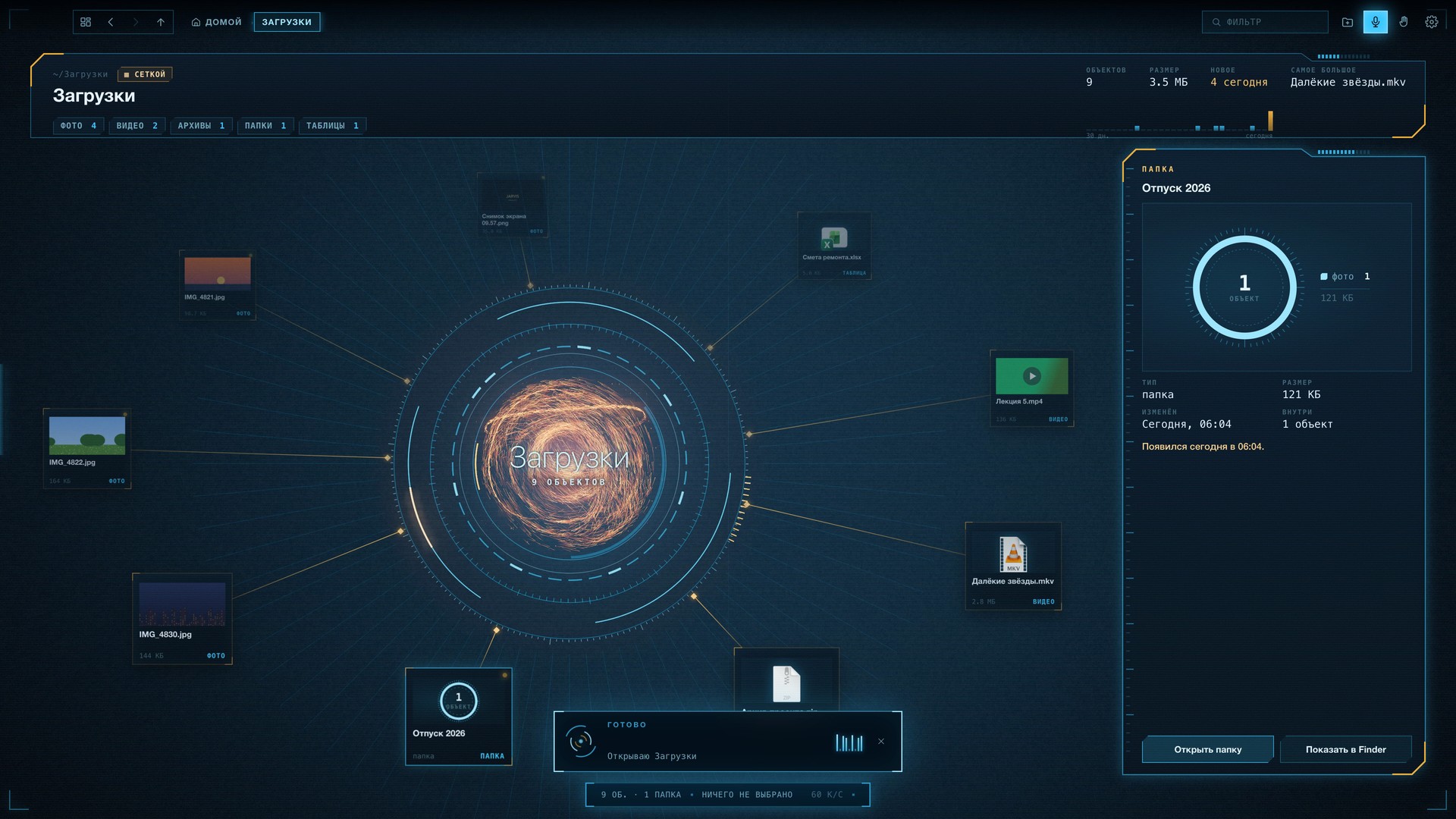 1
2
3
4
5
6
7
8
9
10
11
1
2
3
4
5
6
7
8
9
10
11
Section 08
The cards behave like in Finder, only prettier. Everything can be done with the mouse, the keyboard or by voice — the result is the same. The simplest way is to tell Jarvis what you need.
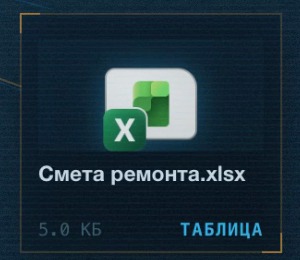
A document. The real macOS icon, name, size, type.

Photos and video are shown with a preview of the contents.
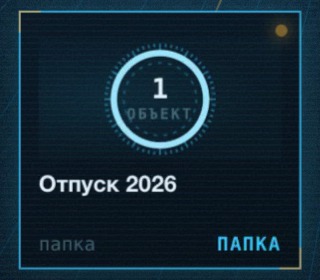
A folder: a ring with the item count. Turns gold when you drag onto it.
| Action | With the mouse and keys | By voice |
|---|---|---|
| Select | Click; ⌘ — add, ⇧ — a range; ⌘A — all | select all pictures · select donald |
| Open | Double click or Enter | open the report · open the note in a text editor |
| Move or copy | Drag onto a folder or a place; while dragging ⌥ — copy, ⌘ — move | move this to the desktop · copy the note to archive |
| Rename · new folder | ⌘R · ⌘N | rename the note to important · create a folder reports |
| Compress · unpack · path | Right button — the context menu | compress this · unpack the archive · copy the path |
| To the Trash | ⌘⌫ | delete this — only after your “yes” |
| Find by name | ⌘F — the filter in the current folder | find the contract on the computer — across the whole Mac |
Photos, video, music, PDF and text open right here — in a window with a hologram frame. The main window stands in the centre, the others wait as thumbnails along the edges; a click on a thumbnail’s title brings it back to the centre. Windows never overlap and never slide off the screen.
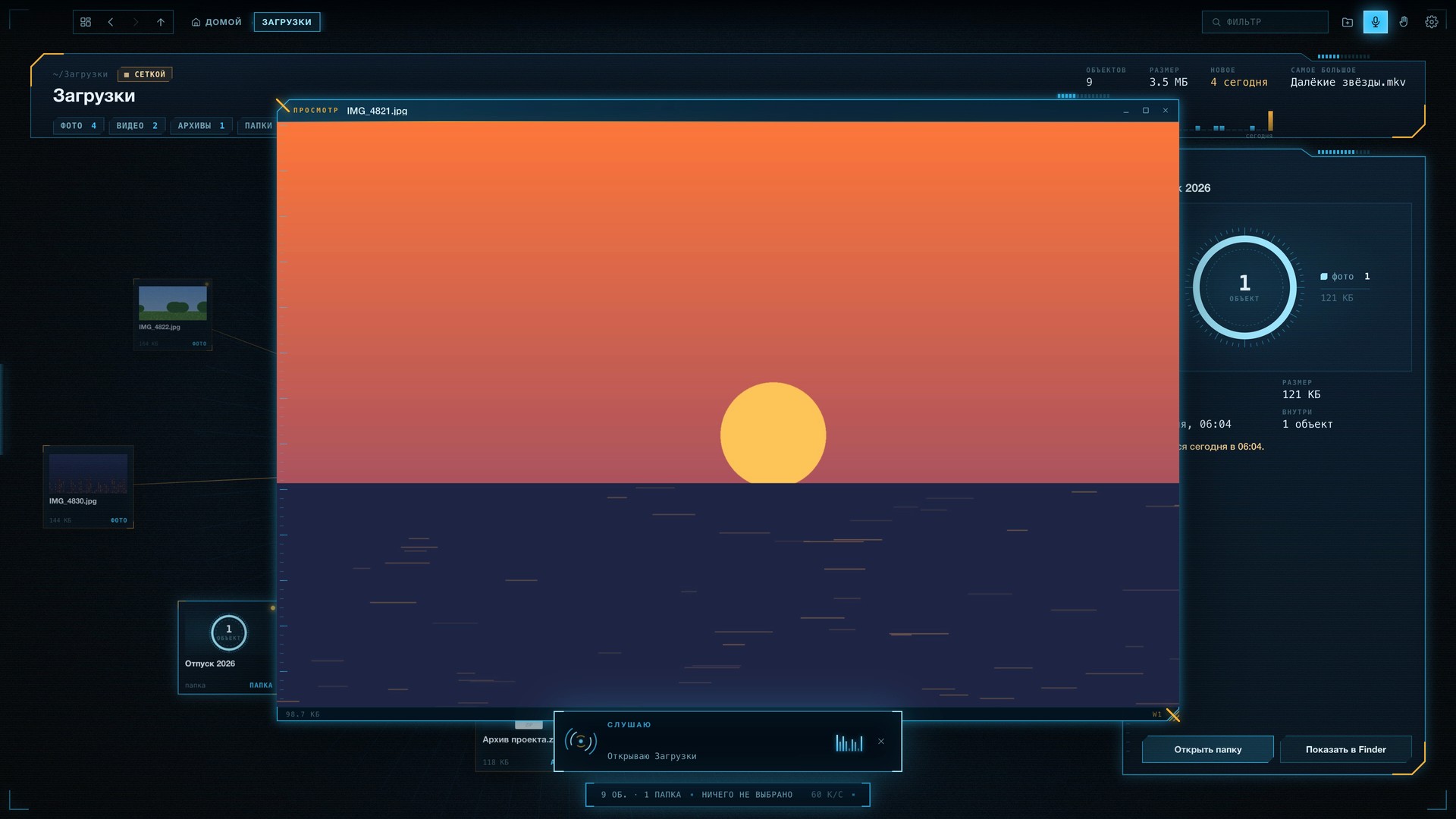
A viewing window. Upper left — the type and name of the file, on the right — minimise, maximise, close. On the main screen one window fits between the widgets, and only the clock hides behind it.
| close the window | the current one |
| close all windows | all at once |
| minimise · maximise | or Esc — minimise |
| bigger | enlarge the window |
| show it here | open the selected item in a window |
| show the places | slide out the side panel |
Section 09
| Action | What it does |
|---|---|
| Hover | the card comes alive: light runs along the outline, a glint across the preview |
| Click · double click | select · open |
| Drag | move onto a folder, into a place on the left or onto a path link at the top |
| Wheel · two fingers | scroll the rows |
| Two fingers sideways · pinch on the trackpad | rotate the scene · zoom in and out (in the “Grid” view) |
| Right button | the context menu |
| Moving around | |
|---|---|
| ← → ↑ ↓ | between cards; with ⇧ — select |
| Enter · ⌘↓ | open |
| Space | look up close |
| ⌫ · ⌘↑ | one level up |
| ⌘[ · ⌘] | back · forward |
| ⌘D | the main screen and back to the folder |
| Home · End | to the start · to the end |
| PgUp · PgDn | page by rows |
| Files | |
| ⌘C ⌘X ⌘V | copy · cut · paste |
| ⌘A · Esc | select all · clear the selection |
| ⌘N · ⌘R | new folder · rename |
| ⌘⌫ | to the Trash |
| ⌘F | filter by name |
| Assistant and view | |
|---|---|
| V | microphone: listen / do not listen |
| G | gestures in front of the camera |
| B | the built-in browser |
| H | hide and show the side panel |
| 1 2 3 | arc · grid · spiral |
| 0 | return the camera to the start position |
| Esc | minimise the hologram window |
| ⌘, | settings |
| ⌘Q | quit Jarvis |
Section 10
Speak as you would to a person. One sentence — what to find, where to look and what to do with it. If several options fit, Jarvis does not guess — he asks.
A command starts with the name: Jarvis, open downloads. Without the name Jarvis does not react — so a movie soundtrack and other people’s conversations never become commands. The name alone, without a command, gets a short “Yes, sir?”, and he keeps listening.
After a command is done Jarvis listens for another 10 seconds without the name: “Done, sir. Any further instructions?”. Small things — volume, pause, minimise — he does silently. How he wakes and falls asleep — section 11.
While Jarvis is speaking, say Jarvis, stop, enough, not that or let me clarify, I need… — he falls silent and listens. Just to cut the answer short: quiet.
Jarvis shows a numbered list and asks. Answer the first, number three, the last, name the file (february), say all or cancel. You can also click the options with the mouse.
Names can be said in your language even if the file is written differently: “donald” finds donald_face.png. Numbers are understood as words: “version fifteen” → v15. Formats — by ear: “pdf”, “word”, “excel”, “jpeg”.

Listening — the microphone is open. On the right — the sound level and a cross that closes the panel; V or the microphone button turn hearing off completely.

Command → Thinking → Answering. At the top — what he heard, below — the answer. While the brain searches, you can see what exactly: “Searching the documents…”. Longer than three seconds — he says “Let me look”.

Done — what exactly was done: not just “done”, but “Noted. The note is in Documents, in the Jarvis folder”.
Section 11
Jarvis has three states: closed, waiting for his name, and listening. From closed he is woken by two claps and a phrase, from waiting — by his name, and a farewell closes him.
The claps are heard by a small background program, “Jarvis — Wake” (next page). Its microphone only watches the loudness, and the phrase is recognised on the Mac; nothing is recorded or sent anywhere. While Jarvis is open, it lets go of the microphone.
Any name from the settings (“Answer to names”) works. “On Friday” is a weekday, not a call. To check whether the program hears the claps, look at the icon in the menu bar: it says “Waiting for ‘Wake up, sleepyhead’”.
The name alone — “Yes, sir?”, after that the command can be said without the name. The name together with a command — straight to work. How many seconds after answering he waits for a command is set by “Fall asleep after silence” (45 s by default); then he waits for the name again. This is the “sleep” of hearing: the microphone works, but reacts only to the name.
| Phrase | What happens |
|---|---|
| quiet · stop · enough | He falls silent and cuts the answer short. Keeps listening. |
| stop listening · turn off the microphone | Hearing is off completely — he will not even answer to his name until you press V or the microphone button. |
| Good night, Jarvis | A short farewell — and the program closes. The name is required, at the start or the end of the phrase. If Jarvis is already listening after “Yes, sir?”, the name is not needed. Polite words do not get in the way: “All right, Jarvis, thanks for the work, good night”. But words about something else break the farewell: “while the music plays”, “good night, kids” — not a command. |
| Bye, Jarvis · Jarvis, see you soon · see you tomorrow · see you · goodbye | |
| Jarvis, shut down · power off · close down · finish up | |
| Спокойной ночи, Джарвис · Пока, Джарвис · Джарвис, выключайся | The same in Russian. |
Installs itself on the first launch of the built Jarvis: into the user’s Applications folder (visible in Launchpad and Spotlight) and as a shortcut on the Desktop. It starts at login and lives as an icon in the menu bar — Jarvis himself can be closed meanwhile.
The state (“Waiting for ‘Wake up, sleepyhead’”, “Jarvis is open”, “paused”), Pause — stop listening for a while, Open Jarvis — without claps, Restart, Log and Turn off.
Next to it — the state: running, off or not installed. The buttons Turn off / Turn on and Restart; the switch “Claps — start at login”.
Jarvis opens, the intro music plays: Jarvis’s theme, your own file (in the settings — from which second and for how long) or off. The music yields to the voice: it fades as soon as Jarvis starts speaking.
A greeting for the time of day, then the briefing: how much is unread in Mail and messengers and what the weather is. “Someone managed to write”, “lots of work” or “a nice day — time to make coffee”. Called by name — the briefing is skipped.
Called — “Yes, sir?”. Done — “Done, sir. Any further instructions?” and he listens for another 10 seconds without the name. If you have already answered his question, he does not finish the unsaid part afterwards.
Good night, Jarvis — a short farewell, and the program closes until morning. Without the name these words do nothing: a movie soundtrack will not close the program.
Section 12
These are examples, not formulas: Jarvis understands natural speech — “where is the contract”, “check whether there are such files there”, “new folder reports”. The full list is always at hand: say what can you do or press “Voice commands” in the settings.
| find the movie Harry Potter on the computer and play it |
| find the document letter in pdf format and open it |
| find the report on the mac and move it to downloads |
| find the contract on the computer and delete it |
| find donald — only in the current folder |
Where to look: “on the computer”, “on the mac”, “everywhere” — across the whole home via Spotlight; without these words — in the current folder. Type: movie, video, photo, document, music, archive, folder, program, spreadsheet, presentation. Format: “in pdf format”, “with the docx extension”.
| open downloads · documents · desktop |
| open the folder archive · go to reports |
| open the note in a text editor |
| up · back · forward · refresh |
| home · main screen |
| open the program music |
| open the program music and play the moonlight sonata |
| open the movie in QuickTime |
| close the program mail |
| copy the note to archive |
| move this to the desktop |
| copy all movies to downloads |
| copy · cut · paste |
| create a folder reports |
| rename the note to important |
| duplicate this · copy the path |
| compress this · unpack the archive |
| show in Finder |
| delete this · delete the report |
| He first says what he is deleting and asks. Does it only after your “yes”. |
| select all pictures · select donald |
| select all · clear the selection |
| sort by size · by date · by name · by type |
| show only video · show everything |
| show hidden files · hide hidden files |
| grid · arc · spiral · zoom in · centre |
| how many files are in this folder · where am I |
| what is here · the size of this |
| close the window · close all windows |
| minimise · maximise · bigger |
| show it here · show the places |
| go back to the main screen |
| turn it up · quieter · volume 40 percent |
| mute the sound · unmute |
| send the sound to the headphones · to the speakers |
| turn off the microphone · stop listening |
| play “Distant Stars” · play the movie The Hobbit |
| pause · continue · full screen |
| skip 20 seconds · back · to the 45th minute · from the start |
| switch to the original · bring back the Russian dub · another audio track |
| all videos on the computer |
| what’s the weather · what about tomorrow · weather in Kazan |
| what came in the mail? · what is in the letter from accounting? |
| what is the total in the renovation estimate? — found in the documents |
| remember: car inspection on October 14 at 10 am |
| when is the car inspection? — answered from the note |
| what is in this document? · what is the article about? |
| find a cartoon about a cat on youtube and play it |
| search the internet for the weather in Moscow |
| open the site habr.ru · open youtube |
| open the first one · page back · close the browser |
| open mail · open WhatsApp · open Telegram |
| what can you do · quiet |
| turn on gestures · turn off gestures |
| switch to Russian · переключись на английский |
| Good night, Jarvis · Bye, Jarvis |
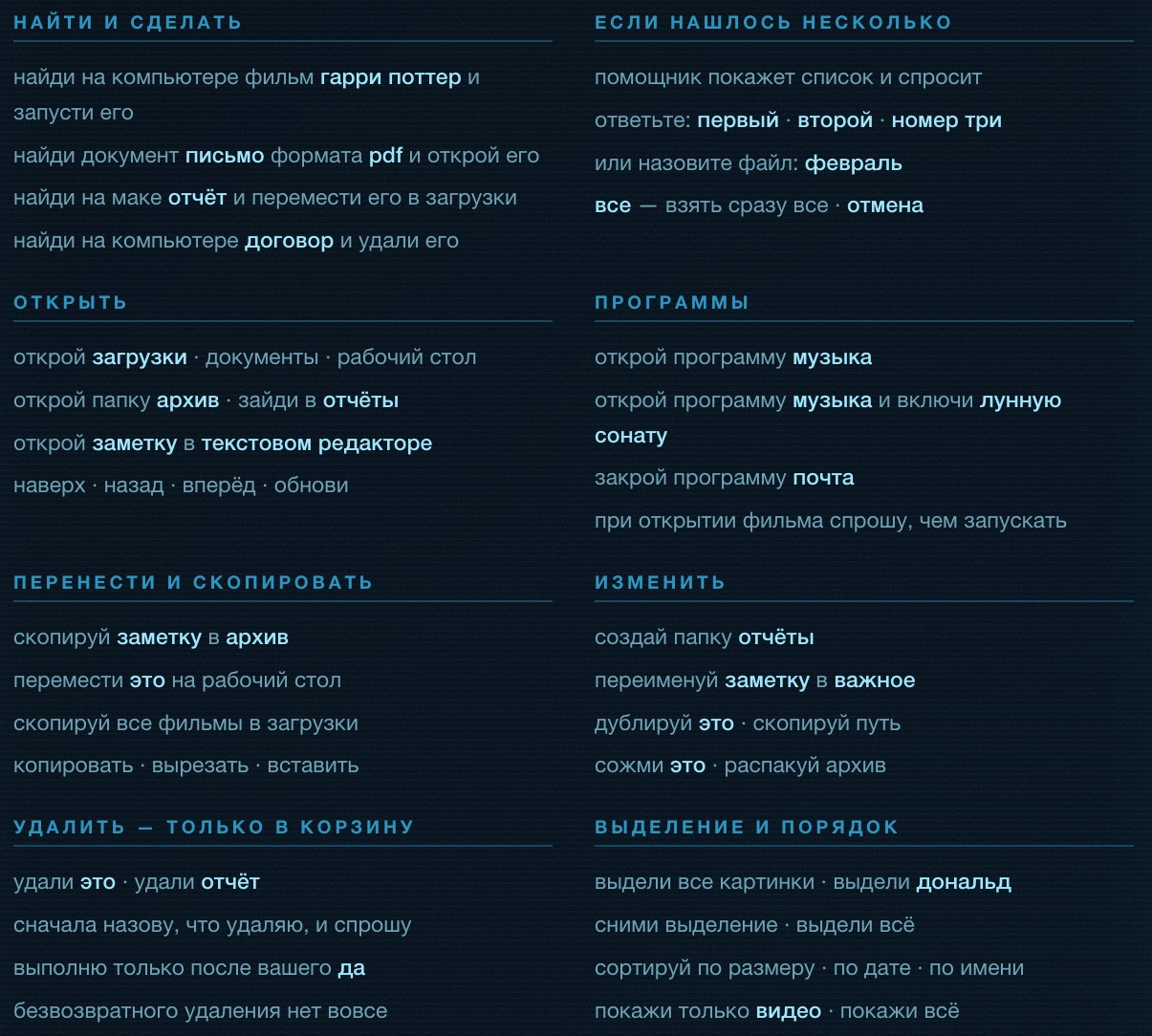
The built-in help. Opens with the phrase what can you do or the “Voice commands” button in the settings.
Section 13
Ask about the contents without naming the file — Jarvis finds the answer in your documents and tells you where it came from. No answer — he says so and never makes anything up. Works with any brain, built-in or external.
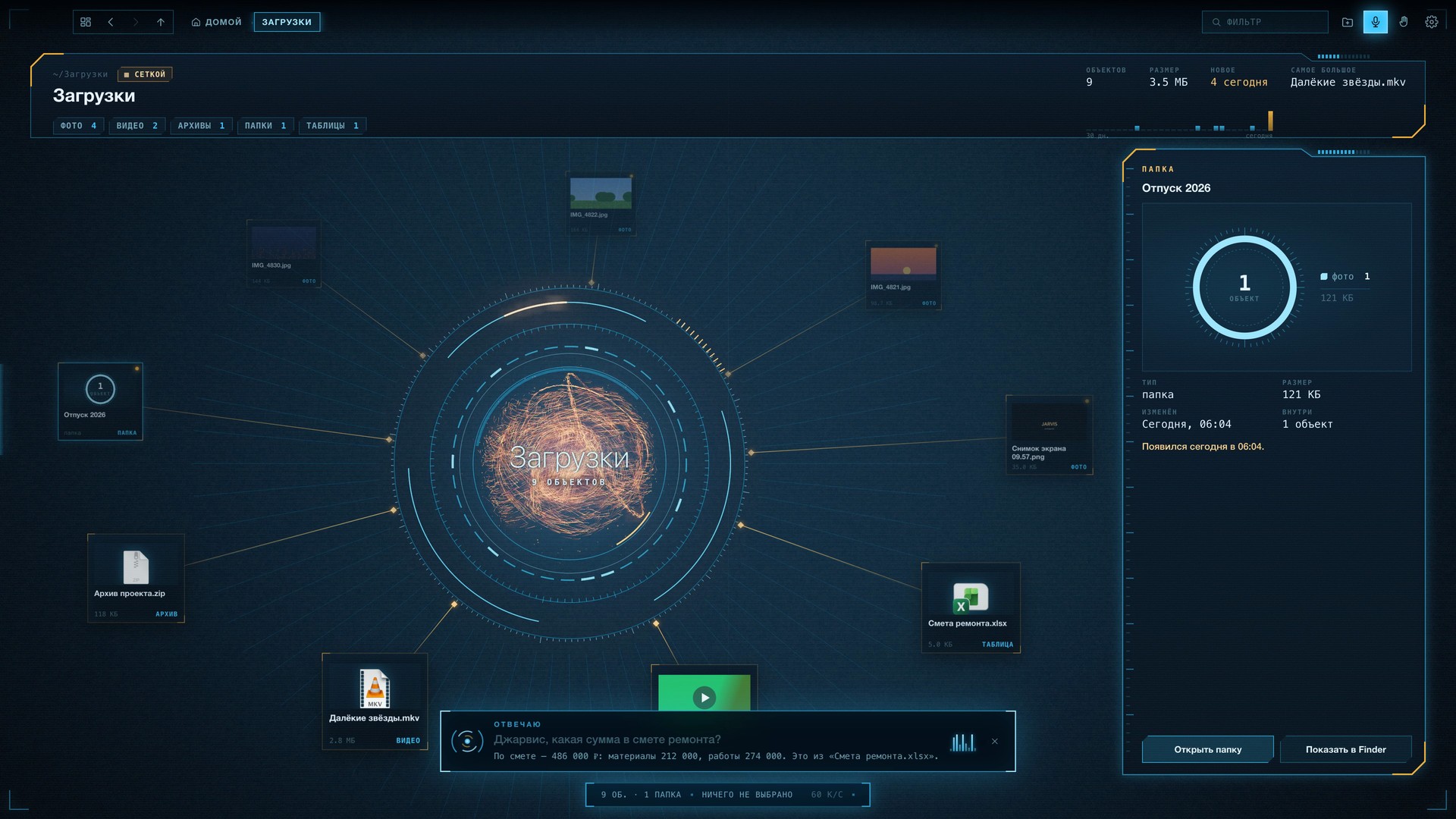
“Jarvis, what is the total in the renovation estimate?” — “By the estimate — 486,000 ₽: materials 212,000, labour 274,000. That is from ‘Renovation estimate.xlsx’.” While he searches, the panel shows: “Searching the documents…”.
Opened a letter, a PDF or an article in the browser — ask what is this about? or what does the letter ask for?. If you turn on “Notice interesting things in what is open” in the settings, Jarvis points out the main thing himself whenever you open something — no more than once in 40 seconds and never interrupting you.
Say Jarvis, remember: car inspection on October 14 at 10 am.
Section 14
Movies play in the built-in player, in a window inside Jarvis. It handles sound that ordinary players stay silent on, and puts the Russian track first.
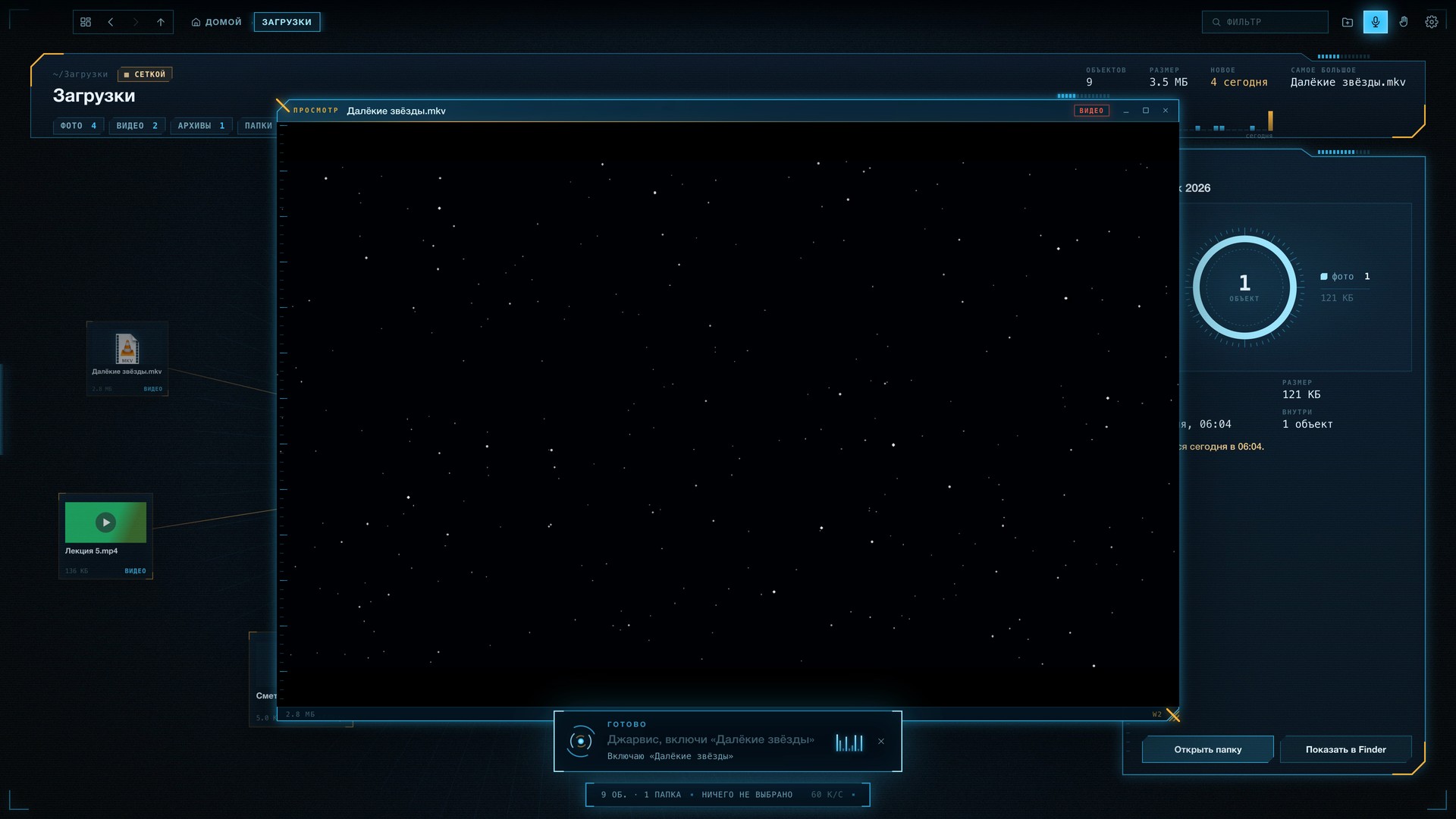
“Jarvis, play ‘Distant Stars’.” The movie opened in a window; the panel says “Playing ‘Distant Stars’”. Speak during the movie — the sound goes down so that Jarvis can hear you.
A rare format that could not be read — Jarvis offers to open it in IINA or VLC: “‘…’ does not play here. Play it in IINA?”. Answer “yes”. To open in an external player right away: open the movie in IINA.
Section 15
The “Mail” widget. The latest letters from the Mail app; in the right corner — how many are unread.
Jarvis reads letters from the Mail app — read only, he never sends or deletes anything. Ask what came in the mail? or what is in the letter from accounting? — he reads it and points out the main thing: “They ask you to sign the act by Friday”. A click on a letter in the widget opens it in a window; if Mail is closed — iCloud Mail opens inside Jarvis.
Unread items are counted by the badge numbers in the Dock: Mail, Messages, Telegram, WhatsApp, Viber, Slack and other running programs. The contents are not read and no permissions are needed.
iCloud Mail, WhatsApp and Telegram open in windows inside Jarvis — these are their web versions, the sign-in is kept between launches: open WhatsApp. SMS and iMessage have no web version, so open messages launches the Messages app.
The B key or by voice. The page opens inside Jarvis, in a holographic frame. Site names are understood in any form: “on youtube”, “on vk”, “in wikipedia”.
| Phrase | What happens |
|---|---|
| find a cartoon about a cat on youtube and play it | search and play the first result |
| find a concert on vk | search on the site |
| search the internet for the weather in Moscow | web search |
| open the site habr.ru | go to the address |
| open the first one · pause · full screen | playback control |
| page back · close the browser | navigation |
YouTube, VK, VK Video, RuTube, Wikipedia, Yandex, Google, DuckDuckGo and Maps. Any other — by address: “open the site …”.
Section 16
Files can be handled by hand: the camera sees your hand and the cursor repeats its movements. Turn it on with the G key, the palm button at the top or the phrase turn on gestures. The first time, macOS asks for camera permission.
| Gesture | Action |
|---|---|
| ✋ Open palm | move the cursor — it follows the tip of the index finger |
| 👌 Pinch | grab an item; a pinch on empty space and a drag — rotate the scene |
| Release the pinch | put it down; over a folder — move it inside |
| ☝︎ Point and hold for 0.85 s | open |
| ✌︎ Two fingers | toggle between copy and move |
| 👍 Thumb up | confirm |
| ✊ Fist, hold for 0.5 s | clear the selection |
| ✋ A sharp move to the left | one level up |
| Two hands pinched, move apart | zoom in and out |
An iPhone near the Mac appears in the list as an ordinary camera (Continuity Camera) and is offered first. If the iPhone is asleep or far away — pick the built-in camera in the drop-down list on the gesture panel.
Recognition of 21 hand points runs on the Mac, without a network. If the model file is missing, a simplified tracker works — the cursor and grabbing without individual fingers; the full version comes back with the “Download the hand model” button in the settings (about 7 MB, once).
Section 17
Jarvis does a lot, but nothing behind your back.
Copying, moving, renaming and deleting — only with your consent. Jarvis first says what and where, then waits for the answer. “No” cancels.
“Delete” always means “to the Trash” — through the macOS system mechanism. Anything deleted can be brought back from the Trash.
Speech is recognised and synthesised on the Mac. Recordings go nowhere. While Jarvis speaks, his own voice is marked as echo and does not count as a command.
The file window physically cannot reach the internet. The browser works in a separate session and goes online only where you asked.
| What | Where and why |
|---|---|
| Weather | The city name — to the Open-Meteo service. Without a network the widget is simply empty. |
| The built-in browser | Only the pages you opened yourself or asked to find. |
| An external brain | Only if you chose it: the text of the request and the excerpts from documents or letters needed for the answer. The built-in Gemma sends nothing. |
| Safe search | With parental control on, family mode is added to Yandex, Google and Bing queries, and YouTube gets restricted mode. |
| Mail and messengers | The windows with web versions go to their own sites, like an ordinary browser. The mail widget reads letters from the Mail app locally. |
Section 18
| What happened | What to do |
|---|---|
| Does not open after installation | Right-click the icon → “Open” → “Open”. Needed once: the app is signed locally. |
| Does not react to the name | Look at the “Hearing” indicator under the clock and the line in the “Load” widget: if it says “mic off” — press V. Check the permissions: System Settings → Privacy & Security → Microphone and Speech Recognition. After an update they are asked again. Sound on Bluetooth headphones — Jarvis listens through their microphone, speak into them. |
| Takes a movie for a command | This should not happen: commands are by name only. Make sure “Turn the movie down when I speak” is on, and say the name clearly, in a pause. |
| The external brain does not answer | Settings → “Brain — who thinks” → “Check”. The notes “needs a key”, “the key did not match”, “not responding right now”, “sign in needed” are explained in section 05.1. |
| Everything is slow, the GPU is loaded | Settings → untick “Pick graphics automatically” → 60 frames and 150 % scale (section 04.1). To restore — tick the box again. |
| A site says “closed by parental control” | Parental control for a child is on. Change the age or turn it off — in the settings, with the parent’s password (section 04.2). |
| The answer is on screen, but there is no voice | The voice ran out of memory at the peak. Jarvis repeats the phrase himself after the memory is freed; a short warning appears on screen. Close heavy programs, switch to the 12B build or to an external brain. |
| Thinks for a long time | Short requests run instantly, long ones go to the brain (1.5–5 s on the built-in one, 7–9 s on external ones). The first answer after changing the voice or the brain takes longer — that is a one-off. |
| Video without sound or not playing | Say play it in IINA or open in VLC. Protected video (Netflix) does not play inside. |
| The weather is empty | No internet — the “Network” widget shows it. Jarvis retries after 20 seconds, 1 and 2 minutes. |
| Gestures do not work | Camera permission: System Settings → Privacy → Camera. The hand model is needed — “Download the hand model” in the settings. Do not move the mouse: it takes over control. |
| Claps do not wake him | The “Jarvis — Wake” icon in the menu bar shows the state; in the settings — “Restart”. Clap sharply, twice, with a pause of silence before the first clap; say the phrase within six seconds after the signal (section 11). |
| Both builds are installed, but only one starts | By design: the settings are shared, they do not run together. Close one, open the other. |
| Where the logs are | The Library/Logs/Jarvis folder in your home folder: jarvis.log, voice-worker.log, ear-worker.log. Your phrases are not there. |
On one page
After two claps, when Jarvis is closed.
The reply “Yes, sir?” — and he listens.
The folder full screen. Back: “main screen” or ⌘D.
Searches the whole Mac; with several matches — asks.
Says what and where, and waits for your “yes”.
To the Trash only, and only after a “yes”.
The movie in the built-in player, the Russian track first.
Small things are done silently.
An answer from your documents with the source named.
A note in Documents › Jarvis › Notes.
Reads it and points out the main thing.
Says goodbye and closes. Also “Bye, Jarvis”, “see you soon”, “shut down”.
⌘, → “Brain — who thinks” → choose ChatGPT, Claude, Gemini, DeepSeek or Alice → paste the key from the model’s website → “Save” → “Check” → “Done”. Back to the built-in one — in the same list. Details — section 05.